


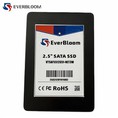

Can I add SSD caching to my existing computer?
In the ever - evolving landscape of computer technology, the pursuit of faster and more efficient systems is a constant. One question that frequently arises among computer users is whether they can add SSD caching to their existing computers. As an SSD supplier, I'm here to provide you with a comprehensive answer to this query.
Understanding SSD Caching
Before delving into whether you can add SSD caching to your existing computer, it's essential to understand what SSD caching is. SSD caching is a technology that uses a solid - state drive (SSD) as a cache for a larger, slower hard disk drive (HDD). The basic principle behind it is to take advantage of the SSD's much faster read and write speeds. When you access data on your computer, the system first checks the SSD cache. If the data is there (the cache hit), it can be retrieved much more quickly than if it had to be fetched from the HDD.
Compatibility Considerations
The first step in determining whether you can add SSD caching to your existing computer is to assess its compatibility.
Hardware Compatibility
- Motherboard Support: Your motherboard must support SSD caching technology. Most modern motherboards come with support for technologies like Intel Smart Response Technology (ISRT) or AMD's equivalent. Check your motherboard's manual or the manufacturer's website to see if it has such support. For example, if you have an Intel - based system, look for information about ISRT. Some older motherboards may not have the necessary features to enable SSD caching.
- Interface and Form Factor: You need to ensure that the SSD you choose is compatible with your computer's available interfaces. Common interfaces for SSDs include SATA and NVMe. If your computer has an available SATA port, you can consider a MSATA SATA III SSD. For those with newer systems that support NVMe, NVMe M.2 PCIe 3.0 SSD or NVMe M.2 PCIe 4.0 SSD can offer even faster performance.
Software Compatibility
- Operating System: The operating system you are using also plays a crucial role. Windows 7, 8, and 10 support Intel Smart Response Technology. For AMD systems, the appropriate software for SSD caching may be available in Windows as well. Make sure your operating system is up - to - date to avoid any compatibility issues.
Benefits of Adding SSD Caching
If your computer is compatible, adding SSD caching can bring several benefits.
Improved Boot Times
One of the most noticeable improvements is in the boot time of your computer. Since the most frequently accessed system files can be stored in the SSD cache, the system can load these files much faster, reducing the time it takes for your computer to start up.
Faster Application Launch
Applications that are frequently used can also load more quickly. The SSD cache stores parts of these applications, allowing them to be launched almost instantaneously. This is particularly beneficial for resource - intensive applications like video editing software or games.


Enhanced Overall System Responsiveness
With SSD caching, your computer will generally feel more responsive. Whether you are multitasking, opening files, or performing other operations, the system can access the data more rapidly, leading to a smoother user experience.
Steps to Add SSD Caching
Assuming your computer meets the compatibility requirements, here are the general steps to add SSD caching:
- Purchase an SSD: Based on your computer's compatibility, choose an appropriate SSD. As mentioned earlier, consider factors like interface, form factor, and capacity. A smaller capacity SSD can still be effective for caching purposes.
- Install the SSD: Open your computer case and install the SSD in the appropriate slot. If it's a SATA SSD, connect it to the SATA port on your motherboard and to the power supply. For an M.2 SSD, insert it into the M.2 slot on the motherboard.
- Configure the Caching:
- Windows with Intel Smart Response Technology: If you have an Intel - based system, you need to create a RAID 0 array in the BIOS. After that, in Windows, use the Intel Rapid Storage Technology software to set up the SSD as a cache for your HDD.
- AMD Systems: The process may vary slightly. You'll need to refer to the AMD documentation for the specific steps to configure SSD caching.
Potential Challenges
While adding SSD caching can be beneficial, there are also some potential challenges.
- Data Loss: If there are issues with the SSD cache, such as a hardware failure, there is a risk of data loss. It's important to have regular backups of your important data.
- Performance Degradation: In some cases, if the SSD cache is not configured correctly or if there are compatibility issues, it may actually lead to performance degradation rather than improvement.
Contact for Purchase and Consultation
If you're considering adding SSD caching to your existing computer and need help with choosing the right SSD or have any other questions, we're here to assist you. Our team of experts can provide in - depth advice based on your specific computer setup. Whether you need a NVMe M.2 PCIe 3.0 SSD, NVMe M.2 PCIe 4.0 SSD, or MSATA SATA III SSD, we have a wide range of products to meet your needs. Reach out to us to start the procurement process and enhance your computer's performance.
References
- Intel Corporation. "Intel Smart Response Technology." Intel official website.
- AMD. "SSD Caching on AMD Systems." AMD official documentation.
- Microsoft. "Operating System Support for SSD Caching." Microsoft official resources.