


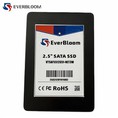

Formatting an MSATA SATA III SSD might seem like a daunting task, especially if you're new to the world of solid - state drives. But don't worry! As an MSATA SATA III SSD supplier, I'm here to walk you through the process step by step.
Why Format an MSATA SATA III SSD?
Before we dive into the formatting process, let's talk about why you might want to format your MSATA SATA III SSD in the first place. There are a few reasons. Maybe you've just bought a new SSD and want to prepare it for use. Or perhaps you're selling your old SSD and want to wipe all the data off it. Formatting can also help if you're experiencing issues with your drive, like slow performance or errors.
What You'll Need
To format an MSATA SATA III SSD, you'll need a few things:
- A computer with an available SATA port or an external SATA enclosure.
- An operating system (Windows, macOS, or Linux). In this guide, I'll mainly focus on Windows, as it's one of the most commonly used operating systems.
- Backup your data! Formatting will erase all the data on your SSD, so make sure you've backed up anything important.
Formatting on Windows
- Connect Your SSD
First, connect your MSATA SATA III SSD to your computer. If your computer has an available SATA port, you can directly connect the SSD. If not, you can use an external SATA enclosure. Once it's connected, your computer should detect the drive. - Open Disk Management
Press the Windows key + R to open the Run dialog box. Type "diskmgmt.msc" and hit Enter. This will open the Disk Management tool. - Find Your SSD
In the Disk Management window, you'll see a list of all the drives connected to your computer. Look for your MSATA SATA III SSD. It might be labeled as "Disk X" (where X is a number). - Initialize the Disk (if necessary)
If your SSD is brand new, it might need to be initialized. Right - click on the unallocated space of your SSD and select "Initialize Disk". Choose either MBR (Master Boot Record) or GPT (GUID Partition Table). GPT is generally recommended for modern systems, especially if you're using UEFI firmware. - Create a Partition
Right - click on the unallocated space of your SSD and select "New Simple Volume". Follow the wizard to create a partition. You can choose the size of the partition, the drive letter, and the file system. For most users, NTFS is a good choice as it offers better security and performance. - Format the Partition
Once the partition is created, right - click on it and select "Format". In the format dialog, you can choose the file system, allocation unit size, and other options. Leave the default settings if you're not sure. Then click "OK" to start the formatting process. This might take a few minutes depending on the size of your SSD.
Formatting on macOS
- Connect Your SSD
Connect your MSATA SATA III SSD to your Mac using an appropriate adapter or enclosure. - Open Disk Utility
You can find Disk Utility in the Applications > Utilities folder. Open it. - Select Your SSD
In Disk Utility, select your MSATA SATA III SSD from the list on the left - hand side. - Erase the Disk
Click the "Erase" button at the top of the window. In the erase dialog, choose the format (APFS is recommended for modern Macs) and give your drive a name. Then click "Erase" to start the process.
Formatting on Linux
- Connect Your SSD
Connect your SSD to your Linux machine. - Identify the SSD
Open a terminal and run the command "sudo fdisk -l". This will list all the disks connected to your system. Find your MSATA SATA III SSD. It might be something like "/dev/sdb". - Create a Partition
Use the "fdisk" or "parted" tool to create a partition on your SSD. For example, to use "fdisk", run "sudo fdisk /dev/sdb". Follow the prompts to create a partition. - Format the Partition
Once the partition is created, use the "mkfs" command to format it. For example, to format it as ext4, run "sudo mkfs.ext4 /dev/sdb1" (assuming your partition is sdb1).
Tips for Formatting
- Use a Reliable Tool: Whether you're using the built - in tools in your operating system or a third - party tool, make sure it's reliable. Some third - party tools offer more advanced features like secure erase, which can be useful if you want to completely wipe your SSD.
- Check for Firmware Updates: Before formatting, make sure your SSD has the latest firmware. This can improve performance and stability. You can usually find firmware updates on the manufacturer's website.
Our Product Range
As an MSATA SATA III SSD supplier, we also offer a wide range of other SSD products. Check out our SATA III M.2 SSD, 2.5 Inch SATA III SSD, and NVMe M.2 PCIe 3.0 SSD. These drives offer different features and performance levels to meet your specific needs.
Contact Us for Procurement
If you're interested in purchasing our MSATA SATA III SSDs or any of our other products, we'd love to hear from you. We can provide you with detailed product information, pricing, and support. Whether you're a small business looking for reliable storage solutions or an individual in need of a high - performance SSD, we've got you covered. Just reach out to us and start the procurement process.


References
- Microsoft Support: Disk Management in Windows
- Apple Support: Disk Utility on macOS
- Linux Documentation Project: Disk Partitioning and Formatting in Linux