


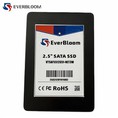
In the realm of modern data storage, Solid State Drives (SSDs) have revolutionized the way we store and access data. They offer significant advantages over traditional Hard Disk Drives (HDDs), such as faster read and write speeds, lower power consumption, and enhanced durability. One of the key technologies that contribute to the optimal performance of SSDs is TRIM. As an SSD supplier, I am here to explain what TRIM is, how it works, and its importance in the world of SSDs.
What is TRIM?
TRIM is a command introduced in 2009 as part of the Advanced Host Controller Interface (AHCI) standard. It is designed to improve the efficiency and longevity of SSDs by informing the drive which blocks of data are no longer in use and can be safely erased. In a traditional HDD, the operating system simply marks the sectors as available for reuse when data is deleted. However, SSDs work differently.
SSDs are composed of NAND flash memory, which consists of cells that store data in the form of electrical charges. To write new data, the SSD controller must first erase the existing data in a block before it can be rewritten. This erasure process is relatively slow compared to the writing process. When data is deleted from an SSD without TRIM, the drive does not know which blocks are no longer needed, so it has to perform a time - consuming "garbage collection" process to identify and erase these unused blocks.
How Does TRIM Work?
When you delete a file on your computer, the operating system sends a TRIM command to the SSD. This command tells the SSD which logical blocks of data are no longer in use. The SSD controller then adds these blocks to a list of available blocks for future writing operations. When the SSD needs to write new data, it can directly use these pre - erased blocks, eliminating the need for a time - consuming erase operation.
Let's take a closer look at the step - by - step process:
- Data Deletion: You delete a file from your operating system. The operating system marks the corresponding logical blocks as free.
- TRIM Command: The operating system sends a TRIM command to the SSD, specifying the logical block addresses (LBAs) of the now - unused blocks.
- SSD Response: The SSD controller receives the TRIM command and updates its internal mapping table. It marks these blocks as available for future use and can perform the erase operation in the background at a convenient time.
- Writing New Data: When new data needs to be written, the SSD controller can select from the pool of pre - erased blocks, resulting in faster write speeds.
Importance of TRIM for SSDs
Performance Improvement
One of the most significant benefits of TRIM is the improvement in write performance. Without TRIM, as more and more data is deleted and written on the SSD, the drive's performance can degrade over time. This is because the SSD has to spend more time on garbage collection to find and erase unused blocks. With TRIM enabled, the SSD can maintain high write speeds throughout its lifespan, providing a consistent and smooth user experience.
For example, if you are using an NVMe M.2 PCIe 3.0 SSD for gaming or video editing, where fast data transfer is crucial, TRIM ensures that your drive can quickly write new data, such as game saves or video project files, without any significant slowdowns.
Extended Lifespan
SSDs have a limited number of program - erase (P/E) cycles for each NAND flash cell. Every time a block is erased and rewritten, it consumes one P/E cycle. Without TRIM, the SSD may perform unnecessary erasure operations during garbage collection, which can wear out the NAND flash cells faster. By allowing the SSD to manage its blocks more efficiently, TRIM reduces the number of unnecessary erasures, thus extending the lifespan of the drive.
If you are using an MSATA SATA III SSD in a laptop for everyday use, such as web browsing, document editing, and media playback, TRIM helps to ensure that the drive lasts longer, saving you the cost and hassle of frequent drive replacements.
Compatibility and Support
Most modern operating systems support TRIM, including Windows, macOS, and Linux. However, it is important to note that not all SSDs support TRIM. When purchasing an SSD, make sure that it is TRIM - compatible. As an SSD supplier, we ensure that all our products, including NVMe M.2 PCIe 4.0 SSD, support TRIM, so you can enjoy the full benefits of this technology.
Enabling TRIM
The process of enabling TRIM varies depending on the operating system:
Windows
In Windows, TRIM is enabled by default on most systems. However, you can check if it is enabled by opening the Command Prompt as an administrator and running the following command:
fsutil behavior query DisableDeleteNotify
If the output is "DisableDeleteNotify = 0", TRIM is enabled. If it is "1", you can enable TRIM by running the following command:
fsutil behavior set DisableDeleteNotify 0
macOS
On macOS, TRIM is automatically enabled for Apple - branded SSDs. For third - party SSDs, you may need to use a third - party tool or enable it through the Terminal.
Linux
In Linux, TRIM support is usually enabled by default. You can check if it is enabled by running the following command:
sudo hdparm -I /dev/sdX | grep TRIM
Replace /dev/sdX with the actual device name of your SSD.
Conclusion
TRIM is a crucial technology for SSDs that significantly enhances their performance and lifespan. As an SSD supplier, we understand the importance of this technology and ensure that all our products are TRIM - enabled. Whether you are a casual user looking for a reliable storage solution for your laptop or a professional in need of high - performance storage for data - intensive applications, our SSDs with TRIM support can meet your needs.
If you are interested in purchasing high - quality SSDs with TRIM support, we invite you to contact us for procurement and negotiation. We are committed to providing you with the best products and services in the SSD market.


References
- Intel Corporation. "SSD Performance and the TRIM Command."
- Samsung Electronics. "Understanding TRIM for SSDs."
- Western Digital. "How TRIM Improves SSD Performance."