


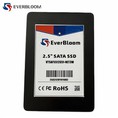

Do I need to format a new SSD? This is a question that many computer users, especially those new to the world of solid - state drives (SSDs), often ask. As an SSD supplier, I'm here to provide you with a comprehensive answer based on scientific facts and industry knowledge.
Understanding the Basics of SSDs
Before we delve into whether you need to format a new SSD, let's briefly understand what an SSD is. An SSD is a type of storage device that uses NAND - based flash memory to store data. Compared to traditional hard disk drives (HDDs), SSDs offer significantly faster data transfer speeds, lower power consumption, and greater durability.
When you purchase a new SSD, it usually comes pre - formatted from the factory. The most common file systems used for pre - formatting are NTFS (New Technology File System) for Windows and HFS+ (Hierarchical File System Plus) for older macOS systems, or APFS (Apple File System) for newer macOS versions.
Reasons for Formatting a New SSD
1. Compatibility
One of the primary reasons you might need to format a new SSD is for compatibility. If you're using a different operating system than the one for which the SSD was pre - formatted, formatting can ensure seamless integration. For example, if you buy an SSD pre - formatted with NTFS and you're using a Linux system, formatting it to an ext4 file system will make it fully compatible with your Linux environment.
2. Partitioning
Formatting also allows you to partition the SSD according to your needs. Partitioning is the process of dividing the SSD into multiple logical sections. You might want to create separate partitions for the operating system, applications, and data storage. This can help with organization and data management. For instance, if you plan to dual - boot between Windows and Linux, partitioning the SSD will allow you to allocate specific areas for each operating system.
3. Data Erasure
Although a new SSD should be clean, formatting can provide an extra layer of assurance. It ensures that any potential factory - test data or residual information is completely removed. This is especially important for users who are concerned about data privacy and security.
Situations Where Formatting May Not Be Necessary
1. Plug - and - Play Compatibility
If the SSD is pre - formatted with a file system that is compatible with your operating system, and you don't have specific partitioning or data - erasure requirements, you can often use the SSD right out of the box. For example, if you're using a Windows 10 system and the SSD is pre - formatted with NTFS, you can simply connect the SSD to your computer, and it will be recognized and ready to use.
2. Manufacturer - Specific Optimizations
Some SSD manufacturers perform special optimizations during the pre - formatting process. These optimizations can enhance the performance and longevity of the SSD. Formatting the SSD might remove these optimizations, so in such cases, it's advisable to consult the manufacturer's documentation before proceeding with formatting.
Different Types of SSDs and Formatting Considerations
As an SSD supplier, we offer a variety of SSDs, each with its own characteristics and formatting requirements.
MSATA SATA III SSD
The MSATA SATA III SSD is a popular choice for laptops and small form - factor devices. It offers high - speed data transfer via the SATA III interface. When it comes to formatting, the same general rules apply. If you're using a compatible operating system, you can likely use it without formatting. However, if you need to change the file system or partition the drive, formatting is necessary.
NVMe M.2 PCIe 4.0 SSD
The NVMe M.2 PCIe 4.0 SSD is a high - performance SSD that utilizes the NVMe (Non - Volatile Memory Express) protocol over the PCIe 4.0 interface. These SSDs are known for their lightning - fast read and write speeds. When formatting an NVMe M.2 PCIe 4.0 SSD, it's important to ensure that your motherboard and operating system support the NVMe protocol. Most modern operating systems have built - in support for NVMe, but formatting may be required to set up the appropriate file system and partitions.
SATA III M.2 SSD
The SATA III M.2 SSD combines the M.2 form factor with the SATA III interface. It offers a good balance between performance and cost. Similar to other SSDs, formatting depends on your specific requirements. If you plan to use it with a different operating system or need custom partitioning, formatting is the way to go.
How to Format an SSD
If you've decided that formatting your new SSD is necessary, here are the general steps:
Windows
- Connect the SSD to your computer.
- Open "Disk Management" by right - clicking on the "This PC" icon and selecting "Manage".
- In Disk Management, locate the SSD.
- Right - click on the unallocated space or existing partition on the SSD and select "New Simple Volume".
- Follow the wizard to choose the partition size, file system (e.g., NTFS), and assign a drive letter.
macOS
- Connect the SSD to your Mac.
- Open "Disk Utility" from the "Utilities" folder in the "Applications" directory.
- Select the SSD in the left - hand sidebar.
- Click the "Erase" button.
- Choose the appropriate format (e.g., APFS) and give the volume a name. Then click "Erase".
Linux
- Open a terminal.
- Use the
fdiskorpartedcommand to partition the SSD if needed. - Use the
mkfscommand to create a file system. For example, to create an ext4 file system, you can use the commandmkfs.ext4 /dev/sdX, wheresdXis the device name of your SSD.
Conclusion
In conclusion, whether you need to format a new SSD depends on your specific circumstances. If the SSD is compatible with your operating system and you don't have special requirements, you can often use it without formatting. However, if you need to change the file system, partition the drive, or ensure data erasure, formatting is a necessary step.


As an SSD supplier, we are committed to providing you with high - quality SSDs and the knowledge to make the most of them. If you have any questions about our MSATA SATA III SSD, NVMe M.2 PCIe 4.0 SSD, or SATA III M.2 SSD, or if you're interested in purchasing SSDs for your business or personal use, we encourage you to reach out to us for a procurement discussion. We can help you choose the right SSD for your needs and provide guidance on installation and formatting.
References
- "Modern Operating Systems" by Andrew S. Tanenbaum.
- "SSD Handbook: A Complete Guide to Solid - State Drives" by Terry Doyle.