



Can I use an SSD in a Chromebook?
As an SSD supplier, I often get asked whether it's possible to use an SSD in a Chromebook. The short answer is yes, in many cases, you can. However, there are several factors to consider before making the switch.
Compatibility
The first and most crucial aspect is compatibility. Chromebooks come in a variety of models, each with its own set of hardware specifications. Some Chromebooks are designed with user - replaceable storage, while others have soldered - on storage that cannot be easily upgraded.
For Chromebooks that support user - replaceable storage, you need to ensure that the SSD you choose is compatible with the device's interface. There are several types of SSD interfaces commonly used in laptops and Chromebooks:
-
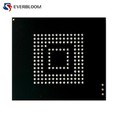
SATA III M.2 SSD: This type of SSD is a popular choice for many Chromebooks. It offers a good balance between performance and cost. The SATA III interface provides a maximum data transfer rate of up to 6 Gbps. If your Chromebook has an M.2 slot that supports SATA III, you can consider using a SATA III M.2 SSD. These SSDs are relatively easy to install and can significantly improve the boot time and overall performance of your Chromebook.
-
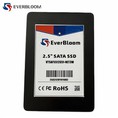
Industrial 2.5 Inch SATA SSD: Some older Chromebooks or those with more traditional laptop designs may have a 2.5 - inch SATA drive bay. In such cases, an Industrial 2.5 Inch SATA SSD can be a great option. These SSDs are more widely available and offer similar performance to M.2 SATA SSDs. However, they may require a bit more effort to install as they need to be physically mounted in the drive bay.
-
NVMe M.2 PCIe 3.0 SSD: For Chromebooks that support NVMe (Non - Volatile Memory Express) technology, a NVMe M.2 PCIe 3.0 SSD can provide even faster data transfer speeds. NVMe SSDs can offer read and write speeds that are several times faster than SATA - based SSDs. However, not all Chromebooks support NVMe, so you need to check your device's specifications carefully.
Benefits of Using an SSD in a Chromebook
There are several benefits to using an SSD in your Chromebook:
-
Faster Boot Times: One of the most noticeable improvements is the reduction in boot time. SSDs have much faster read and write speeds compared to traditional hard disk drives (HDDs). This means that your Chromebook can start up in a matter of seconds, allowing you to get to work or play more quickly.
-
Improved Performance: Applications and files load much faster on an SSD. Whether you're opening a web browser, editing a document, or running a photo - editing application, you'll experience a significant improvement in responsiveness.
-
Reliability: SSDs have no moving parts, which makes them more resistant to shock and vibration. This means that your data is less likely to be damaged in case of accidental drops or bumps.
-
Energy Efficiency: SSDs consume less power than HDDs. This can lead to longer battery life for your Chromebook, allowing you to use it for longer periods without having to recharge.
Installation Process
If your Chromebook supports user - replaceable storage, the installation process is relatively straightforward. Here are the general steps:
-
Backup Your Data: Before you start, make sure to back up all your important data. This can be done using an external hard drive or cloud storage services.
-
Power Off and Disconnect: Turn off your Chromebook and disconnect it from the power source.
-
Open the Case: Depending on your Chromebook model, you may need to remove a few screws to access the storage compartment. Use a small Phillips - head screwdriver to carefully remove the screws.
-
Remove the Old Storage: If your Chromebook has an existing HDD or SSD, carefully remove it from the slot or drive bay.
-
Install the New SSD: Insert the new SSD into the appropriate slot or drive bay. Make sure it is securely seated.
-
Close the Case: Replace the screws and close the case.
-
Reconnect and Power On: Reconnect your Chromebook to the power source and turn it on. You may need to enter the BIOS settings to configure the new SSD as the boot drive.
Limitations and Considerations
While using an SSD in a Chromebook can offer many benefits, there are also some limitations and considerations:
-
Warranty: Installing an SSD may void your Chromebook's warranty. Make sure to check your device's warranty terms before making any changes.


-
Software Compatibility: Some Chromebooks may require specific drivers or firmware updates to work properly with the new SSD. Make sure to check the manufacturer's website for any available updates.
-
Cost: SSDs can be more expensive than HDDs, especially high - performance NVMe SSDs. Consider your budget before making a purchase.
Conclusion
In conclusion, using an SSD in a Chromebook is a viable option for many users. It can significantly improve the performance, reliability, and battery life of your device. However, it's important to consider the compatibility, installation process, and potential limitations before making the switch.
If you're interested in purchasing an SSD for your Chromebook, we are here to help. Our wide range of SSDs, including SATA III M.2 SSD, Industrial 2.5 Inch SATA SSD, and NVMe M.2 PCIe 3.0 SSD, are designed to meet the needs of different Chromebook models. We can provide you with detailed information and guidance to ensure that you choose the right SSD for your device. Contact us for more information and to start the procurement process.
References
- Chromebook official documentation from various manufacturers
- Industry reports on SSD technology and compatibility