



Hey there, tech enthusiasts! If you're looking to boost your computer's performance, installing an MSATA SATA III SSD can be a game-changer. I'm a supplier of these awesome drives, and I'm here to walk you through the installation process step by step.


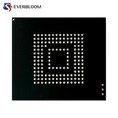
First off, let's talk a bit about what an MSATA SATA III SSD is. It's a type of solid-state drive that uses the Mini Serial ATA (MSATA) interface, which is smaller than the traditional 2.5-inch SATA drives. The "SATA III" part means it supports the third generation of the Serial ATA interface, offering faster data transfer speeds compared to its predecessors. You can learn more about MSATA SATA III SSD on our website.
What You'll Need
Before you start the installation, gather the following tools and materials:
- An MSATA SATA III SSD. You can get one from us, of course!
- A Phillips head screwdriver.
- An anti-static wrist strap (optional but recommended to prevent static damage to the components).
- Your computer. Make sure it has an MSATA slot.
Step 1: Prepare Your Computer
- Back Up Your Data: This is super important. Before you start tinkering with your computer, back up all your important files. You can use an external hard drive, cloud storage, or any other backup method you prefer.
- Shut Down Your Computer: Turn off your computer completely and unplug it from the power source. This will prevent any electrical accidents during the installation.
- Ground Yourself: If you're using an anti-static wrist strap, put it on and attach it to a grounded object. If you don't have one, touch a metal object to discharge any static electricity from your body.
Step 2: Open Your Computer Case
- Remove the Side Panel: Use your Phillips head screwdriver to remove the screws on the back of your computer case. Slide the side panel off to expose the internal components.
- Locate the MSATA Slot: The MSATA slot is usually located on the motherboard. It looks like a small, rectangular slot with a connector. Refer to your computer's manual if you're having trouble finding it.
Step 3: Install the MSATA SATA III SSD
- Align the SSD: Take your MSATA SATA III SSD and align it with the MSATA slot. Make sure the connector on the SSD matches the connector in the slot.
- Insert the SSD: Gently insert the SSD into the slot at a slight angle. Once it's in place, press down firmly until it clicks into position.
- Secure the SSD: Some MSATA slots have a screw to secure the SSD. If yours does, use your screwdriver to tighten the screw.
Step 4: Close Your Computer Case
- Replace the Side Panel: Slide the side panel back onto the computer case and secure it with the screws.
- Plug in Your Computer: Plug your computer back into the power source and turn it on.
Step 5: Initialize and Format the SSD
- Access the BIOS: When your computer starts up, press the appropriate key (usually F2, F10, or Delete) to enter the BIOS.
- Check the SSD: In the BIOS, look for the "Storage" or "Drive" section. Make sure your MSATA SATA III SSD is detected.
- Save and Exit the BIOS: Once you've confirmed that the SSD is detected, save your changes and exit the BIOS.
- Initialize and Format the SSD: After your computer boots up, open the Disk Management tool (you can find it by searching for "Disk Management" in the Start menu). Right-click on the SSD and select "Initialize Disk". Follow the prompts to format the SSD.
Other SSD Options
If the MSATA SATA III SSD isn't the right fit for you, we also offer other types of SSDs. For example, our NVMe M.2 PCIe 3.0 SSD offers even faster speeds and is a great choice for high-performance systems. And if you prefer a more traditional form factor, our 2.5 Inch SATA III SSD is a reliable option.
Contact Us for Purchasing
If you're interested in purchasing an MSATA SATA III SSD or any of our other products, we'd love to hear from you. Whether you're a small business looking to upgrade your computers or an individual user wanting to improve your system's performance, we can provide you with the right solution. Just reach out to us, and we'll be happy to assist you with your purchase and answer any questions you may have.
References
- Computer hardware manuals
- Online tech forums and communities
So there you have it, folks! Installing an MSATA SATA III SSD is a relatively simple process that can significantly improve your computer's performance. If you have any questions or need further assistance, don't hesitate to contact us. Happy computing!